 GlowHalo Tools
Guides › Photos & files
JPEG quality 60, 75 or 90? What we measured on six photos
Every image compressor, including ours, has a quality slider, and almost nobody explains what the numbers mean. Is 60 "bad"? Is 90 a waste? Instead of repeating rules of thumb, we ran a test: six photographs, two formats, six quality levels, and two measurements for every file, the size in kilobytes and a standard similarity score against the original.
Short answer: for photos that will be viewed on a screen, quality 75 to 85 keeps nearly all visible detail at roughly a tenth of the lossless size. Going from 85 to 95 almost doubles the file for a difference most people cannot see. Below 60 the savings shrink while the damage becomes visible in skin, sky and fine edges.
How we ran the test
We used six photos from the Kodak Lossless True Color Image Suite (images 1, 3, 5, 15, 19 and 23), a set that image compression researchers have used for decades because the files are uncompressed and were released by Eastman Kodak Company for unrestricted use. Each is 768 × 512 pixels and contains a different kind of detail: stone walls, hats, a motorbike race, a child's face, a fence and two parrots.
To make the numbers match what you get from a browser tool, we did not use a desktop encoder. We loaded each photo into Chromium 153 (the engine behind Chrome and Edge), drew it on a canvas and asked the browser to encode it with canvas.toBlob(), which is exactly the call our compressor makes. We encoded JPEG and WebP at quality 40, 60, 75, 85, 90 and 95, and also saved a lossless PNG for reference.
For quality we used SSIM (structural similarity), computed on the brightness channel with scikit-image. SSIM compares local patterns of brightness, contrast and structure rather than raw pixel differences, which makes it track human judgement better than simple error measures. A score of 1.0 means identical. SSIM has no official pass mark, so treat the numbers as a ranking and use the enlarged crops further down to judge the visible difference yourself.
The results
Averages over the six photos. "Share of PNG" compares the average file size with the average lossless PNG (857 KB) produced by the same browser.
| Quality | JPEG size | JPEG SSIM | WebP size | WebP SSIM | JPEG share of PNG |
|---|---|---|---|---|---|
| 40 | 36 KB | 0.912 | 29 KB | 0.915 | 4.2% |
| 60 | 48 KB | 0.935 | 39 KB | 0.939 | 5.6% |
| 75 | 64 KB | 0.954 | 47 KB | 0.952 | 7.5% |
| 85 | 87 KB | 0.969 | 71 KB | 0.972 | 10.2% |
| 90 | 110 KB | 0.978 | 92 KB | 0.981 | 12.8% |
| 95 | 156 KB | 0.988 | 136 KB | 0.990 | 18.2% |
Three things stand out.
- Every lossy setting is dramatically smaller than lossless. Even quality 95 kept the file to under a fifth of the PNG. If you are emailing a PNG photo, any JPEG export is a big win.
- The top of the scale is expensive. Moving from 85 to 95 raised the average JPEG from 87 KB to 156 KB, about 80% more data, for an SSIM gain of 0.019. Moving from 60 to 75 cost only 16 KB and bought a similar gain.
- WebP is smaller at the same number, but the numbers are not the same scale. At quality 75 WebP averaged 47 KB against 64 KB for JPEG, with nearly the same SSIM. At 85 and above WebP was both smaller and slightly better. The quality slider is not standardised between formats, so compare results, not settings.
What the difference looks like
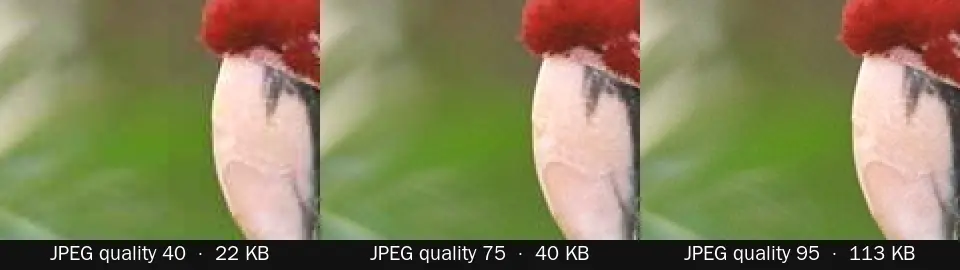
At quality 40 the smooth green background breaks into visible 8 × 8 blocks and the white feathers lose texture. At 75 you have to look closely at the enlarged crop to see anything. At 95 the file is almost three times larger than at 75 (113 KB against 40 KB) and the crop is indistinguishable from it at normal size.
Why the same setting gives very different sizes
At quality 75 our smallest JPEG was 40 KB (the parrots) and the largest 98 KB (the motorbike race). The quality setting controls how coarsely detail is thrown away, not the final size. A photo full of edges, gravel or foliage has more detail to describe, so it stays larger. A portrait against a blurred background compresses well. That is why "compress to exactly 100 KB" tools have to try several settings in a loop, and why you should judge a setting on the kind of photo you actually use.
A surprise: the browser's PNG was bigger than the original
The Kodak PNG files average about 640 KB, but the PNG Chromium produced from the very same pixels averaged 857 KB. Browsers favour encoding speed over the smallest possible PNG. If you need a lossless file, a browser re-save will not make it smaller; a dedicated PNG optimiser can. For photographs the better answer is usually not PNG at all.
Recommended settings
| Use | Format and quality | Why |
|---|---|---|
| Website photos, blog images | WebP 75–80, or JPEG 75–85 | Smallest size where our SSIM stayed above about 0.95 |
| Email attachments, chat | JPEG 75–85 | Opens everywhere; a 12-megapixel photo usually drops to a few hundred KB if you also resize it |
| Product photos where detail sells | JPEG or WebP 85–90 | Visible texture is worth the extra kilobytes |
| Archive or later editing | Keep the original | Each lossy re-save adds new damage; never compress your only copy |
| Screenshots, diagrams, text | PNG or lossless WebP | Sharp edges suffer most from JPEG; see our screenshot format test |
Resize first, then compress
Quality is only half of file size. Our test photos are small (0.4 megapixels). A phone photo at 4000 × 3000 has 30 times as many pixels, and no quality setting will make it as small as a version scaled to the width it will actually be shown at. If an image will be displayed 1200 pixels wide, scale it to 1200 (or 2400 for high-density screens) before choosing a quality. Our compressor has a maximum-size option that does both in one step.
Common questions
Is quality 100 lossless?
No. JPEG at quality 100 still rounds colour information and usually stores colour at reduced resolution; it is simply the least lossy setting and produces very large files. For truly lossless storage use PNG or lossless WebP.
Does re-saving a JPEG at the same quality hurt it?
Usually a little. Each decode and re-encode rounds values again, and the loss adds up over several generations, especially if the image is also cropped or resized in between. Edit from the original when you can.
What quality does a browser use if none is given?
The HTML standard leaves the default to the browser. To get predictable results, always pass a quality value explicitly, as our tool does.
References
- Kodak Lossless True Color Image Suite (test photos used)
- Wang, Bovik, Sheikh, Simoncelli (2004), Image Quality Assessment: From Error Visibility to Structural Similarity, IEEE TIP
- HTML Standard: canvas toBlob() and the quality argument
- scikit-image structural_similarity (the SSIM implementation we used)
Written and checked by Ria Kim for GlowHalo; figures without a source link come from the steps shown on this page. Companion tool: Image Compressor. Spotted an error? Write to help@glowhalo.org. Chrome, Chromium and Edge are trademarks of their owners; GlowHalo is not affiliated with them.