 GlowHalo Tools
Guides › Photos & files
PNG, JPG or WebP for screenshots? We saved the same one nine ways
Photos and screenshots look alike to a computer, both are just grids of pixels, but they compress very differently. A photo is full of soft gradients and noise; a screenshot is flat colour, hard edges and small text. To show what that means in practice we took one screenshot of a typical web page and saved it in nine ways, then measured the size and how far each file drifted from the original.
Short answer: for screenshots use PNG or lossless WebP. Lossless WebP made by a dedicated encoder was the smallest file of all in our test, smaller even than lossy JPEG, with zero changed pixels. JPEG was larger than WebP at both qualities where we tested both (75 and 90), and in our single-screenshot test it was the only format that left faint halos around the text.
The test
We captured our own JSON formatter page at 1200 × 800 pixels in Chromium 153: white background, a grey text box, blue buttons and black text, which is a fair stand-in for a typical app or document screenshot. Then we encoded it with the browser's own canvas.toBlob() (the same call our image converter uses) as JPEG at qualities 75, 90 and 95, as WebP at 75 and 90, and as lossless WebP, and once more with the libwebp encoder in ImageMagick in lossless mode. We measured file size and SSIM, a structural similarity score where 1.0 means identical.
Results
| Encoding | Size | SSIM | Pixels exact? |
|---|---|---|---|
| PNG (Chromium screenshot) | 83 KB | 1.0000 | Yes |
| PNG (re-saved by canvas) | 118 KB | 1.0000 | Yes |
| WebP lossless (libwebp, ImageMagick) | 29 KB | 1.0000 | Yes |
| WebP lossless (canvas, quality 1.0) | 211 KB | 1.0000 | Yes |
| WebP quality 75 (canvas) | 30 KB | 0.9980 | No |
| WebP quality 90 (canvas) | 42 KB | 0.9994 | No |
| JPEG quality 75 (canvas) | 56 KB | 0.9928 | No |
| JPEG quality 90 (canvas) | 78 KB | 0.9979 | No |
| JPEG quality 95 (canvas) | 96 KB | 0.9992 | No |
What the numbers say
- JPEG lost on both counts. JPEG 90 was larger than lossy WebP 90 (78 KB against 42 KB) and still less accurate. To reach the accuracy of WebP 75, JPEG needed quality 90 and more than twice the bytes.
- A good lossless WebP was the best trade-off. At 29 KB with every pixel exact, it was about the same size as lossy WebP 75 (30 KB) and smaller than every JPEG. Screenshots have large areas of identical colour and repeated shapes, which is exactly what WebP's lossless mode is designed to exploit.
- Not all encoders are equal. Asked for lossless WebP, Chromium produced a 211 KB file, seven times larger than libwebp's 29 KB for identical pixels, and its re-saved PNG was 118 KB against the 83 KB of the original screenshot. Browsers choose fast encoder settings because they encode while you wait. The format sets the ceiling; the encoder decides how close you get.
Four more screenshots, through the converter
One page is a small sample, so we captured four other pages at 1200 × 800 in Chrome 153 on Linux: a plain-text specification (RFC 9562), a reference page with adverts (MDN), a code view (GitHub) and a street map (OpenStreetMap, central London). We chose each PNG in our image converter, saved it as PNG, JPEG (JPG in the menu) and WebP at every quality setting, and downloaded the results. For comparison we also made a lossless WebP of each with libwebp at its slowest setting.
| Screenshot | PNG from Chrome | PNG from the converter | JPG, Good (0.85) | WebP, Good (0.85) | WebP lossless (libwebp) |
|---|---|---|---|---|---|
| RFC 9562 (plain-text specification) | 140 KB | 187 KB | 130 KB | 81 KB | 44 KB |
| MDN reference page with adverts | 176 KB | 231 KB | 149 KB | 85 KB | 74 KB |
| GitHub code view | 133 KB | 177 KB | 117 KB | 66 KB | 45 KB |
| OpenStreetMap, central London | 1,116 KB | 1,309 KB | 328 KB | 286 KB | 436 KB |
- On the three text-heavy pages the first result held. Lossless WebP was the smallest file each time, at roughly a third to two fifths of the PNG, with every pixel exact.
- JPEG saved very little on text. At the Good setting it was only about 7 to 15% smaller than the PNG it came from, and it changed pixels to get there. WebP at Good cut the size by roughly 40 to 50%.
- The map is the exception. A detailed map behaves like a photo: thousands of colours and fine lines everywhere. Its PNG was 1,116 KB, lossless WebP 436 KB, and JPEG and WebP at Good about 300 KB. This is the case for a lossy format, as the table further down says for screenshots that contain a photo.
- The converter's PNG was larger than the browser's own. Re-saving a PNG as PNG made it roughly a sixth to a third larger with identical pixels, the same encoder effect as in the first test. If you already have a PNG, converting it to PNG again gains nothing.
The full results are in a .csv file: one row per screenshot and encoding, 36 rows in all, with the size in bytes, the share of pixels that changed at all, and the share that changed by more than 16 levels out of 255.
Why JPEG smudges text
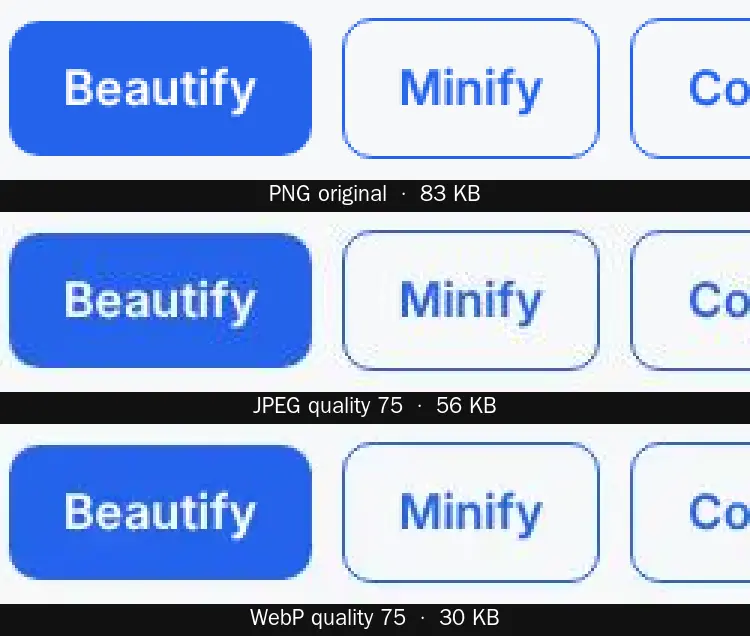
JPEG splits the image into 8 × 8 blocks and describes each block as a sum of smooth waves, discarding the finest waves first. A sharp black-on-white edge is made of exactly those fine waves, so when they are dropped the edge rings: faint grey or coloured speckles appear around letters and thin lines, sometimes called mosquito noise. JPEG also usually stores colour at half resolution, which bleeds colour along the edges of blue buttons and red underlines. On a photo these errors hide in the texture; on a flat white background they stand out.
Which format to use
| You want to... | Use |
|---|---|
| Paste a screenshot into a bug report, document or chat | PNG. It works everywhere and stays exact. |
| Put screenshots on a website | Lossless WebP from a dedicated encoder (for example cwebp -lossless), or lossy WebP 85–90 if the page is very image-heavy. Our converter uses the browser's encoder and cannot make lossless WebP; use PNG from it instead. |
| Send a screenshot that contains a photo (a video frame, a game) | WebP 80–90 or JPEG 85–90; the photo part dominates |
| Upload to a site that rejects WebP | PNG; convert it before uploading |
| Shrink a huge screenshot of a 4K screen | Scale it down first with the resizer; halving width and height removes three quarters of the pixels |
Is WebP safe to use?
All current major browsers display WebP, so for web pages it is a safe default. The friction is elsewhere: some older desktop programs, printing services and upload forms still accept only JPEG and PNG. If a site rejects your WebP file or shows an "unsupported format" message, convert it to PNG, which is accepted almost everywhere and keeps a screenshot exact.
Practical tips
- Crop before you save. A screenshot of one dialog box is a fraction of the size of the whole screen, and it is easier to read.
- Avoid saving a screenshot as JPEG and later converting it to PNG. The PNG will be exact, but it will be an exact copy of the JPEG damage, and larger.
- If a screenshot contains passwords, addresses or other private details, blur them in an editor before sharing. Lower quality settings do not hide text reliably.
- In our converter, PNG is always lossless; the quality menu (High 0.95, Good 0.85, Smaller 0.7) applies to JPEG and WebP.
Common questions
Why is my PNG screenshot bigger than a JPEG photo of the same size?
PNG is lossless, so it never throws detail away. For flat screenshots it is usually small, but a screenshot that contains a photo, a gradient or a video frame has far more unique pixel values, and PNG must store them all.
Does lossless WebP lose anything at all?
No. In our test every pixel of the lossless WebP files matched the original exactly. Lossless means the decoder rebuilds the identical image; only the file layout differs from PNG.
Why not use AVIF?
AVIF can compress photos even further, but encoding is slower and fewer tools and upload forms accept it. For screenshots, lossless WebP and PNG are simpler and already very small.
References
- Google for Developers: WebP compression techniques (lossy and lossless)
- Can I use: WebP image format (browser support)
- W3C: Portable Network Graphics (PNG) Specification, Third Edition
- HTML Standard: canvas toBlob()
Written and checked by Ria Kim for GlowHalo; figures without a source link come from the steps shown on this page. Companion tool: Image Converter. Spotted an error? Write to help@glowhalo.org. Chrome and Chromium are trademarks of their owners; GlowHalo is not affiliated with them.